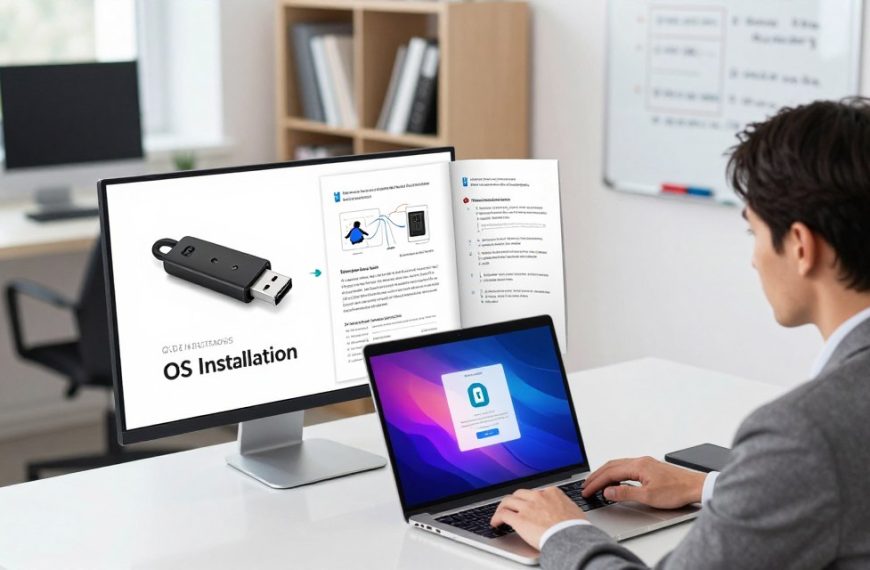

When learning about technology, the operating system definition explains this essential software layer. It connects computer hardware with applications that users see and use. People also call it system software or a resource manager.
What is an operating system? It manages hardware resources so applications can run smoothly. It helps every computer part work together and hides complex technical details from users. This lets people focus on their tasks.
This article explains the definition, functions, and importance of operating systems. It also reviews different types and selection criteria for modern computing.
Key Takeaways
- The operating system is essential for hardware and software interaction.
- It is often called system software or resource manager.
- This software layer simplifies user interactions with technology.
- Understanding its functions is crucial for effective computer use.
- Different types of operating systems serve various user needs.
Defining the Operating System: A Foundational Concept
An operating system acts as a computer’s backbone. This primary system software manages resources and helps applications work with users and hardware.
Application software performs specific user tasks, while the operating system provides its supporting platform. It is the first program loaded when a computer starts and stays active until shutdown. This role makes the operating system an intermediary that supports smooth communication among system components.
Key terms for a computer operating system include:
| Term | Definition | Example |
|---|---|---|
| System Software | Software that manages hardware and software resources. | Operating System |
| Platform | The environment in which software applications run. | Windows, macOS |
| Resource Manager | Component that allocates system resources to various tasks. | Memory Manager |
These concepts build a strong foundation for studying an operating system’s essential functions. They also explain its role in managing hardware resources.
Which Term Best Describes the Operating System of a Computer?
An operating system definition begins with its main purpose: controlling a computer’s hardware and software. It is system software and a resource manager. These terms show how it manages computer resources.
People may confuse an operating system with other software. For example, firmware is low-level software that controls hardware, but it does not manage system resources. Likewise, application software handles specific user tasks and depends on the operating system.
utility programs and middleware do not fully describe it. Utility programs support system maintenance, while middleware helps applications communicate. Neither term describes the operating system’s complete resource management role.
What is an operating system? It acts as the computer’s master control program. It allocates CPU time, manages memory, and coordinates input and output operations. This work gives applications a stable place to run and sets the operating system apart.
| Term | Description | Role in Computing |
|---|---|---|
| System Software | Software that manages hardware and software resources. | Essential for operating system functionality. |
| Resource Manager | Manages CPU, memory, and I/O devices. | Core function of the operating system. |
| Firmware | Low-level software embedded in hardware. | Controls hardware, not resource management. |
| Application Software | Software designed for end-users. | Relies on the operating system to run. |
| Utility Program | Software for system maintenance tasks. | Supports but does not manage resources. |
Understanding the operating system definition and role matters to anyone studying computing. These differences show why the operating system is the backbone of computer function.
The Essential Functions of an Operating System
An operating system (OS) is a computer’s backbone and supports many essential functions. These OS functions help computers manage tasks, memory, and hardware. This overview explains process management, memory management, file system organization, and device coordination.
Process and Task Management
Process management is a basic OS function. It schedules and ranks running programs, so users can multitask. The OS gives CPU time to competing processes, preventing conflicts and supporting performance when many applications are open.
- Multitasking: The OS allows users to run several applications simultaneously.
- Scheduling: It determines the order in which processes receive CPU time.
- Prioritization: The OS assigns priority levels to processes based on their importance.
Memory Allocation and Management
Memory management is another critical OS function. It assigns RAM to active applications and uses virtual memory to improve performance. These controls provide needed resources, prevent memory leaks, and block unauthorized access between programs.
- RAM Allocation: The OS allocates physical memory to running applications.
- Virtual Memory: It uses disk space to extend available memory, allowing larger applications to run.
- Protection: The OS prevents one program from accessing the memory space of another.
File System Organization
Organizing files and directories helps users retrieve data efficiently. The OS structures disk storage, manages directories, and enforces file permissions to protect user data. This file system organization helps users locate and open files quickly.
- Data Structuring: The OS organizes files in a hierarchical structure.
- Directory Management: It maintains directories to categorize files logically.
- File Permissions: The OS controls access to files, ensuring security.
Device and Peripheral Coordination
Device coordination lets the OS interact smoothly with hardware. It uses device drivers to communicate with printers, keyboards, monitors, and other devices. This coordination helps all hardware work together efficiently.
- Device Drivers: These are specific programs that allow the OS to communicate with hardware.
- Interoperability: The OS ensures that different hardware components can work together without issues.
- Input/Output Management: It manages data flow between the OS and peripherals.

In summary, OS functions include process management, memory management, file system organization, and device coordination. Together, these functions help a computer work efficiently and effectively. For more detailed information on operating systems, visit this link.
How an Operating System Manages Hardware Resources
System resource management helps the operating system use hardware efficiently. Hardware management helps computer parts work together smoothly. By coordinating the CPU, memory, and input/output devices, the OS improves system performance.
One key operating system function is CPU scheduling. It decides which tasks receive processor time and how long they run. Various algorithms, including round-robin, priority-based, and first-come-first-served, distribute processor time. Each method has benefits, and the choice affects system responsiveness and efficiency.
CPU Scheduling and Resource Distribution
CPU scheduling balances efficiency with fairness. Round-robin gives each process a time slice in circular order, while priority-based scheduling gives critical tasks CPU access first. This can speed processing for important applications.
Input and Output Device Handling
Input and output device handling is another part of hardware management. The operating system manages data flow between the CPU and peripherals for smooth communication. Buffering and caching improve performance: buffering holds transferred data briefly, while caching stores often-used data for faster retrieval.
The OS also uses interrupt handling to answer device requests quickly. It pauses current operations to handle urgent input or output tasks, supporting an efficient workflow.
Storage and Disk Management
Effective storage management helps maintain system performance. The operating system organizes data on hard drives and solid-state drives. It manages partitions, improves read and write operations, and stores files for quick access and retrieval.
The OS also manages disk space. It tracks available storage and prevents fragmentation, which can slow system performance. These steps improve user experience and system stability.
The Role of an Operating System in Software Execution
The operating system guides software execution on a computer. It connects hardware with software so applications run smoothly and efficiently. This section covers application loading, runtime support, and developer APIs.
Application Loading and Runtime Support
When a user starts an application, the operating system loads its executable file into memory. This process includes several steps:
- Loading Executable Files: The OS locates the executable file and loads it into RAM.
- Resolving Dependencies: It checks for any libraries or resources the application needs to function.
- Allocating Resources: The OS allocates CPU time, memory space, and other resources necessary for the application.
During execution, the operating system supports applications with system calls and error handling. These OS functions help applications use hardware and manage tasks. Tech expert Jane Doe notes:
“The efficiency of software execution hinges on the seamless interaction between the OS and the application.”
Providing APIs for Software Developers
The operating system also provides Application Programming Interfaces (APIs). These tools let developers use system resources without learning hardware details. Popular examples include:
| API | Platform | Functionality |
|---|---|---|
| Windows API | Windows | Access to Windows features and services |
| POSIX | Unix-like systems | Standard interface for compatibility |
| Cocoa | macOS | Framework for building macOS applications |
Without these APIs, software development would be impractical because applications would need hardware-specific designs. That limit would reduce compatibility and slow innovation in software development.
Types of Operating Systems Used in Modern Computing
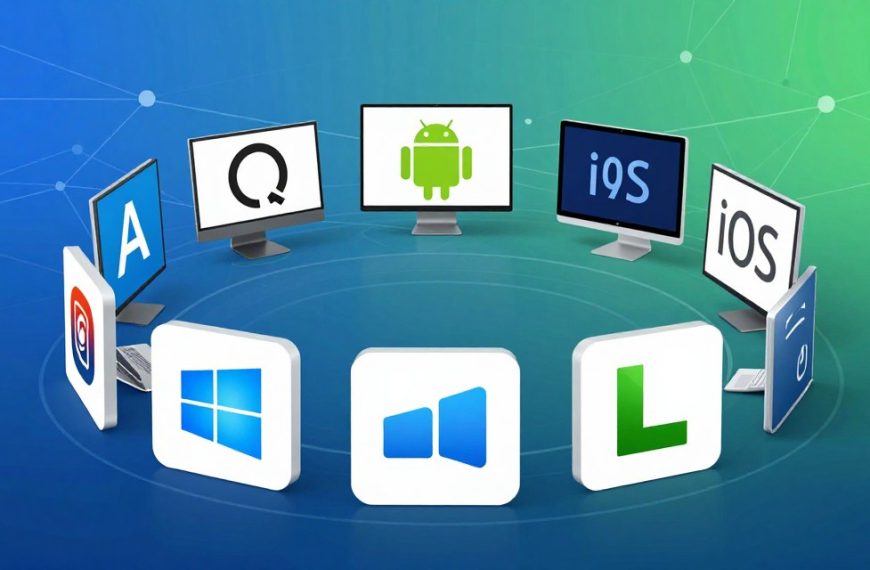
Today, many operating systems meet different needs. Learning about these OS types helps users choose the right computing environment. Windows vs macOS vs Linux comparisons highlight widely used operating system examples.
Microsoft Windows Operating Systems
Microsoft Windows remains a major operating system in today’s market. It has changed greatly from Windows 95 to the latest Windows 11. People use it for business and gaming because it has a user-friendly interface and extensive software compatibility.
Apple macOS
Apple’s macOS uses a Unix foundation for strong performance and security. It works smoothly with Apple hardware and appeals to many creative professionals. Its sleek design and powerful features support productivity and creativity.
Linux Distributions
Linux is open source, so users can modify and share their versions. Distributions such as Ubuntu, Fedora, and Debian serve different user needs. Linux is common on servers, and developers value its flexibility and control.
Mobile Operating Systems: iOS and Android
Mobile operating systems have changed how we interact with technology. Apple’s iOS suits touch interfaces and provides a secure ecosystem. Android uses the Linux kernel, offers broad customization, and runs on many devices.
| Operating System | Key Features | Typical Users |
|---|---|---|
| Microsoft Windows | User-friendly, extensive software support | Businesses, gamers |
| Apple macOS | Unix-based, seamless Apple integration | Creative professionals |
| Linux | Open-source, customizable distributions | Developers, server administrators |
| iOS | Secure, optimized for touch | Apple device users |
| Android | Highly customizable, Linux-based | General mobile users |
Key Components That Make Up an Operating System
Every operating system relies on core parts that help it work well. These operating system components include the kernel, OS user interface, and system utilities.
The Kernel: The Core Engine
The kernel is the operating system’s core. It manages resources and lets hardware and software communicate. It handles key tasks such as:
- Process Scheduling: The kernel decides which processes run and for how long, ensuring optimal CPU usage.
- Memory Management: It allocates memory to processes and manages the memory hierarchy, including RAM and cache.
- Hardware Abstraction: The kernel provides a layer of abstraction, allowing software to interact with hardware without needing to know the specifics of the hardware itself.
Operating systems use different types of kernels, including the following:
- Monolithic Kernels: These kernels manage all system services in one large block of code.
- Microkernels: These focus on minimal functionality, running most services in user space.
- Hybrid Kernels: Combining elements of both, they aim to balance performance and modularity.
The User Interface and Shell
The OS user interface lets people interact with the operating system. The two main types are:
- Graphical User Interfaces (GUIs): These provide visual elements like windows, icons, and buttons, making navigation intuitive.
- Command-Line Interfaces (CLIs): These allow users to interact with the OS through text commands, offering more control for advanced users.
Shells such as Bash, PowerShell, and Windows Command Prompt connect users with the operating system. They run commands and scripts.
System Utilities and Supporting Services
System utilities are support programs that add useful functions to an operating system. They include:
- Disk Defragmenters: These optimize file storage on disks, improving access speed.
- System Monitors: Tools that provide real-time data on system performance and resource usage.
- Backup Tools: Programs that help users safeguard their data against loss.
- Network Services: Utilities that manage network connections and configurations.
These operating system components work together to create a smooth computing environment. They improve the user experience and system performance.
The Evolution of Operating Systems Over Time
OS history shows technology’s rapid growth. Since early computing, operating systems have changed to meet user needs and hardware advances.
At first, computers used manual controls and needed much human effort. Batch processing systems, such as IBM’s OS/360, changed this process. They scheduled jobs automatically, so computers could handle many tasks without manual input.
Early Mainframe and Batch Systems
Early mainframe systems dominated computing because they were large and costly. Businesses and research institutions used them most. Batch processing used resources well by queuing jobs and running them one at a time, preparing the way for future operating systems.
The Rise of Personal Computing Platforms
The 1980s brought personal computing to more people. MS-DOS arrived, followed by graphical interfaces on Apple Macintosh and Windows. These systems transformed computer use by making it easier and more user-friendly.
Unix workstations also appeared during this period, offering powerful tools for developers and advanced users. This operating system evolution marked a major shift from mainframe computing to personal devices.
Modern Cloud-Based and Virtual Operating Systems
Today, operating systems keep changing through cloud computing and virtualization. VMware and Hyper-V can run multiple operating systems on one hardware setup, improving resource use.
Cloud-based systems such as Chrome OS offer lightweight environments centered on the internet. This change shows computing’s new focus, where mobility and connectivity matter most.
| Era | Key Features | Notable Systems |
|---|---|---|
| Early Mainframe | Manual operation, batch processing | IBM OS/360 |
| Personal Computing | Graphical interfaces, user-friendly | MS-DOS, Windows, macOS |
| Modern Cloud | Virtualization, cloud integration | Chrome OS, VMware |
“The only way to do great work is to love what you do.”
This OS history helps us value how operating systems meet changing computing needs. Understanding operating system evolution matters for users and developers navigating technology’s changing landscape.
How Operating Systems Shape the User Experience
The operating system (OS) shapes how users interact with their devices. Its efficiency affects performance, speed, and overall responsiveness. A well-optimized OS improves satisfaction by reducing delays and supporting multitasking.
Performance, Speed, and Responsiveness
Several factors affect device performance. Boot time, application launch speed, and multitasking depend on system resource management by the OS. An OS that allocates CPU and memory efficiently helps applications start and run smoothly.
An operating system’s responsiveness strongly affects user experience. A lagging system frustrates users, but a responsive OS supports smooth movement between applications and tasks. This matters especially for people who use devices for productivity and entertainment.
Security Features and System Stability
Security is another key part of the user experience. Modern operating systems use strong tools to protect users from malware, unauthorized access, and data loss. A stable OS strengthens OS security and creates a more reliable experience.
Built-In Security Tools
Most operating systems include built-in security tools that protect user data. Windows Defender offers real-time protection against viruses and threats, while macOS uses Gatekeeper to block unauthorized software. Firewalls and encryption add protection, helping users work with confidence.
Update Management and Patch Delivery
Regular updates help maintain performance and security. Operating systems deliver updates through Windows Update, macOS Software Update, and Linux package managers. These updates patch vulnerabilities and add features that improve the user experience.
A well-maintained operating system optimizes performance and supports security. Users should choose an OS that meets their needs and offers tools for a smooth, secure experience.

Choosing the Right Operating System for Your Needs
Choosing an operating system can shape your computing experience. First, identify your home or business needs. Different OS types provide varying features, ease of use, and support, affecting satisfaction and productivity.
Considerations for Home and Personal Users
For home users, choosing an operating system often depends on ease of use, software compatibility, and gaming support. Consider these key factors:
- Ease of Use: A user-friendly interface can enhance your experience, especially for those who are not tech-savvy.
- Software Compatibility: Ensure that the OS supports the applications you frequently use.
- Gaming Support: If gaming is a priority, check which OS offers better performance and compatibility with your favorite titles.
- Hardware Requirements: Some operating systems require more powerful hardware than others, so assess your current setup.
- Cost: Consider whether the OS fits your budget, as some may have licensing fees.
Considerations for Business and Enterprise Environments
For businesses, choosing an operating system requires more careful planning. Consider these critical factors:
- Security Compliance: Ensure the OS meets industry standards for data protection and security.
- Centralized Management: Look for systems that allow easy management of multiple devices.
- Licensing Costs: Analyze the total cost of ownership, including support and updates.
- Compatibility with Business Applications: Verify that the OS works seamlessly with essential software.
- Support Availability: Consider the level of technical support offered by the OS provider.
Many organizations use hybrid environments with multiple operating systems. This approach offers flexibility and supports diverse needs.
“The best operating system is the one that meets your specific needs and enhances your productivity.”
Conclusion
Knowing what is an operating system helps anyone who uses a computer. A computer operating system is the backbone of computing tasks, managing hardware and software resources. This article covered process management, memory allocation, and file organization.
The operating system also manages hardware. It coordinates input and output devices, schedules CPU tasks, and oversees storage management. Each type, from Microsoft Windows to Linux distributions, offers features for different user needs.
As technology evolves, operating systems evolve too, while artificial intelligence and cloud computing shape their future. Knowing how the operating system works helps users troubleshoot issues and optimize their computing experience. For more insights on related topics, visit this resource.
In conclusion, a computer operating system is more than software; it links all components of modern computing. As we move forward, operating systems will keep evolving and improving our digital lives.

 By
By