
Can I Transfer My Operating System to Another Computer? What You Need to Know
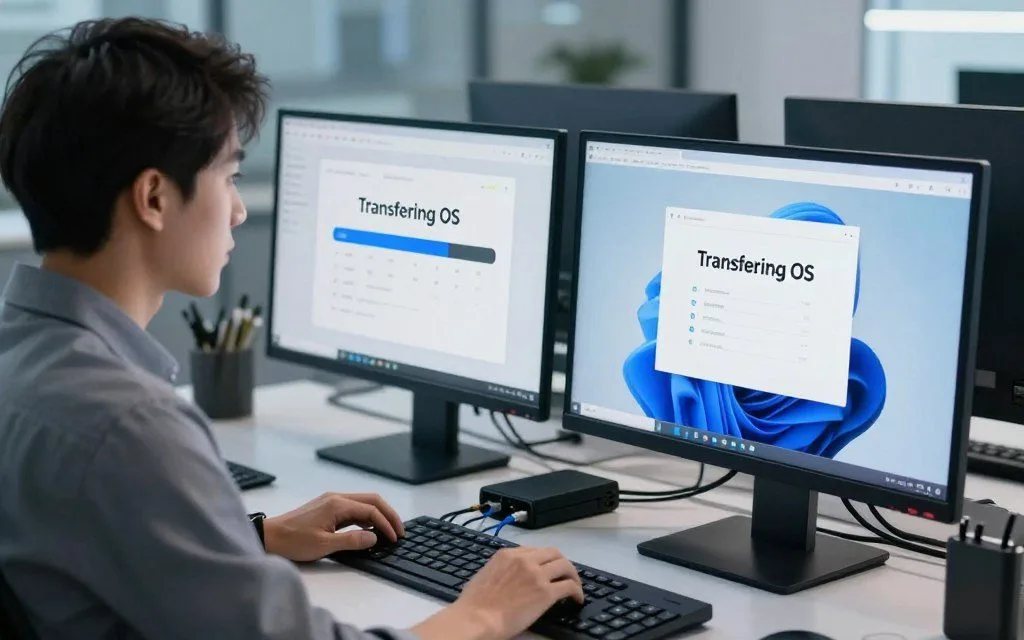
Many users search for transfer OS to new computer when upgrading hardware or replacing an old device. Yes, it is often possible, but compatibility, licensing agreements, and technical know-how create challenges.
This article explains the essential steps for a successful migration. You will learn about system compatibility, licensing laws, and preparation before starting. It also covers OS transfer methods and troubleshooting tips for possible problems.
Understanding the process can help you plan a smoother transition and make informed decisions. You may want better performance or need to replace outdated hardware. This resource provides the knowledge needed for successful OS migration.
Key Takeaways
- Understanding compatibility is crucial for a successful OS transfer.
- Licensing agreements may restrict the transfer process.
- Preparation steps can help prevent issues during migration.
- Different methods exist for transferring an OS, each with its own pros and cons.
- Troubleshooting tips can ease the transition process.
- For more information on identifying your OS, visit this guide.
Understanding OS Transfer Basics
Moving an operating system means more than moving files between computers. You must create a bootable environment on the new hardware and make sure its components work together. To move operating system to new PC, you must understand this process.
What Does OS Transfer Mean?
Transferring an operating system means moving its files, settings, apps, and user data. This process is not a simple copy-and-paste task. Common methods include disk imaging, cloning, and system migration.
Disk imaging captures your OS, settings, and user preferences in a system snapshot. Cloning copies the entire hard drive, so the new machine mirrors the old one. Both methods can rebuild a working environment on a new PC and smooth the transition.
Common Reasons for Moving an Operating System
People move an operating system to a new PC for several reasons. Common reasons include:
- Hardware Failure: If your current system is experiencing hardware issues, transferring the OS can be a viable solution.
- Upgrading Components: Many users opt to move their OS when upgrading to faster components, such as a new CPU or RAM.
- Transitioning to SSD: Shifting from an HDD to an SSD can significantly enhance performance, making an OS transfer appealing.
- Replacing Aging Workstations: As technology advances, replacing old machines with new ones often necessitates an OS transfer.
- Standardizing Corporate Environments: In business settings, maintaining uniformity across systems may require moving the OS to new devices.
These reasons can help you decide whether an OS transfer suits your situation. Weigh its benefits against the possible challenges of migration.
Can I Transfer My Operating System to Another Computer? Compatibility Considerations
Moving an operating system requires careful compatibility planning. New hardware can affect whether the OS works correctly. Hardware architecture differences and driver compatibility issues are two key concerns.
Hardware Architecture Differences
Hardware architecture can greatly affect operating system compatibility. Consider these important factors:
| Factor | Description | Impact on OS Transfer |
|---|---|---|
| CPU Generation | Differences in CPU architecture can affect performance and stability. | May cause boot failures if the OS isn’t compatible with the new CPU. |
| Motherboard Chipset | Chipset variations can lead to driver issues. | Potential for system instability or failure to boot. |
| BIOS vs. UEFI | Different firmware types can complicate the boot process. | May require reconfiguration of boot settings. |
| Storage Controller Modes | AHCI vs. NVMe settings can affect drive recognition. | Incompatibility can lead to data access issues. |
Driver and Peripheral Compatibility
Driver compatibility issues are another key concern when transferring an operating system. Each operating system handles driver mismatches differently:
- Windows: May encounter driver conflicts, especially with graphics and network adapters.
- macOS: Generally manages driver updates well, but peripherals may not be recognized.
- Linux: Offers flexibility, but missing chipset drivers can hinder performance.
As
“Compatibility is key to ensuring a seamless transition between systems.”
Understanding these compatibility challenges helps prevent transfer problems. Modern operating systems handle hardware changes better. However, major differences can still stop a transfer without proper preparation.
Licensing Rules You Must Know Before Transferring
Before an OS transfer, learn the licensing rules. Each operating system sets rules for moving licenses between computers. Knowing the Windows license transfer rules helps you avoid legal problems and plan a smooth change.
Microsoft Windows 10 and 11 License Policies
Microsoft has specific license policies for Windows 10 and 11. It offers two main license types:
- Retail Licenses: These licenses can be transferred to a new computer. You simply need to deactivate the license on the old machine and reactivate it on the new one.
- OEM Licenses: These are tied to the original hardware and generally cannot be transferred legally. If you attempt to move an OEM license, you may face activation issues.
Digital licenses linked to your Microsoft account can make reactivation easier. Keep your account information ready during the OS transfer.
macOS Licensing and Apple ID Restrictions
Apple licenses macOS differently. Apple’s End User License Agreement allows macOS only on Apple-branded hardware. Installing macOS on a non-Apple computer breaks those license terms.
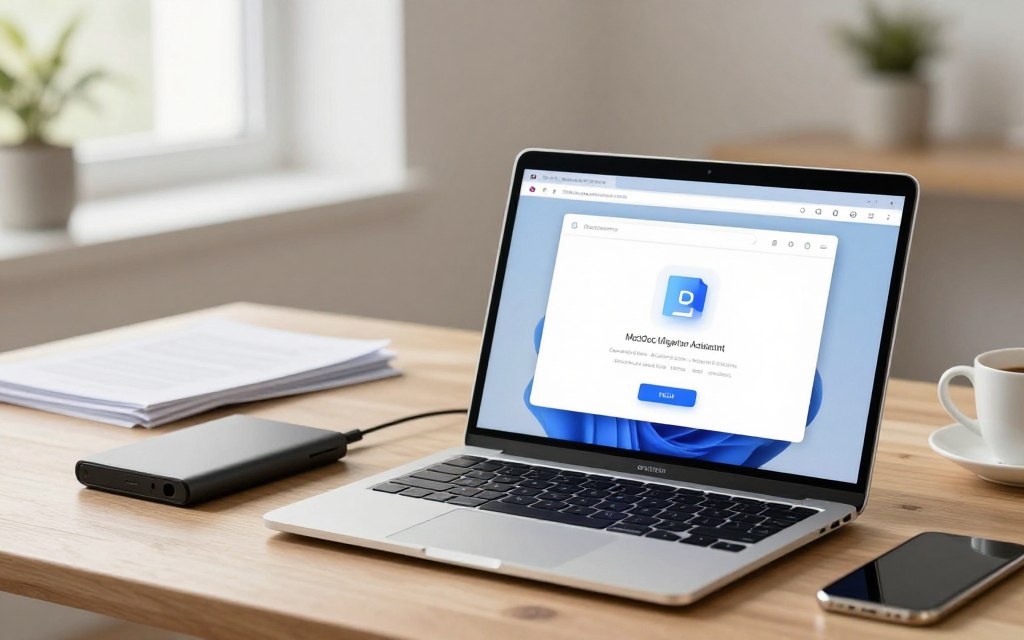
Your Apple ID is often linked to your macOS installation. Migration Assistant can move data between Macs. Follow Apple’s licensing rules throughout the process.
Linux: The Open-Source Advantage
Linux offers a major benefit through its open-source design. Unlike Windows and macOS, Linux distributions place few limits on hardware transfers. You can move Linux between machines freely, making Linux OS transfer simple and legal.
This flexibility helps users who often upgrade hardware or switch devices. Linux lets you customize and transfer your OS as needed.
| Operating System | License Type | Transferability |
|---|---|---|
| Windows 10/11 | Retail | Transferable |
| Windows 10/11 | OEM | Not Transferable |
| macOS | Apple EULA | Not Transferable to Non-Apple Hardware |
| Linux | Open Source | Fully Transferable |

Preparing Your System for a Successful Transfer
A successful OS transfer starts with careful system preparation. Preparation lowers risks and helps prevent problems during the transfer. Follow these two critical steps:
Backing Up Critical Data
Before making changes, create a system image backup as a safety net against data loss. Use built-in tools like Windows Backup and Restore or third-party solutions such as Macrium Reflect and Acronis True Image. Their user-friendly interfaces simplify the backup process.
- Windows Backup and Restore: A reliable option for Windows users that captures your entire system.
- Macrium Reflect: Known for its powerful features and ease of use.
- Acronis True Image: Offers comprehensive backup solutions with cloud storage options.
Gathering Drivers, Serial Numbers, and Software Keys
After backing up your data, gather all needed documents and resources. This includes:
- Hardware Driver Downloads: Ensure you have the latest drivers for the destination computer.
- Windows Product Keys: Keep your Windows product key or digital license information handy.
- Software Activation Keys: Collect activation keys for any installed applications.
- Peripheral Serial Numbers: Note down serial numbers for connected devices.
Thorough preparation lowers the risk of problems during the transfer. As the saying goes, “An ounce of prevention is worth a pound of cure.” These steps build a strong foundation for a successful operating system transfer.
Methods to Transfer Your Operating System
You can transfer your operating system in several effective ways. Each method fits different needs and offers unique benefits. Understanding these options helps you choose the right approach.
Disk Cloning with Tools Like Clonezilla and Macrium Reflect
Disk cloning is a popular way to transfer an operating system. Using disk cloning software like Clonezilla or Macrium Reflect creates an exact copy of your current drive. This method can help you migrate OS to SSD and offers several advantages:
- Preservation of Settings: All your settings, applications, and files are transferred without the need for reinstallation.
- Efficiency: The process is usually faster than reinstalling everything from scratch.
- Performance Boost: You can easily migrate your OS to SSD, which enhances your system’s performance.
As noted by tech experts, “Disk cloning can save time and ensure a seamless transition to a new machine.” This method suits users who want to keep their current setup while upgrading hardware.
Clean Installation on the Destination Computer
A clean installation puts the operating system on the new computer from the beginning. It often helps prevent driver conflicts and licensing issues. This approach offers several benefits:
- Stability: A clean slate reduces the chances of software conflicts.
- Customization: You can tailor the installation to your specific needs without unnecessary bloatware.
- Improved Performance: Starting fresh can lead to a more efficient system overall.
However, you must transfer your data manually. This process can take considerable time.
Using System Imaging Software Such as Acronis True Image
System imaging software, like Acronis True Image, creates a compressed image file of your operating system. Universal restore lets you deploy this image to different hardware. Key advantages include:
- Flexibility: You can restore your system on different machines without compatibility issues.
- Data Security: Images can be stored securely, providing a backup option in case of hardware failure.
- Time-Saving: Restoring from an image is generally quicker than a full installation.
System imaging suits people who value security and ease of use. It provides a useful way to protect and restore your system.
Your technical skill and specific needs should guide your choice. Each option offers unique benefits, so consider which method fits your situation.
For more related information, read this article on the functions of BIOS in a computer.
Step-by-Step Guide to Cloning Your OS to a New Computer
Cloning an operating system onto a new computer may seem hard. The right method makes it simple. This guide explains how to clone Windows to new hardware.
Step 1: Choose the Right Cloning Software
Choosing the right cloning software helps ensure a successful OS transfer. These popular options can help:
| Software | Best For | Key Features |
|---|---|---|
| Clonezilla | Advanced Users | Open-source, versatile, supports multiple file systems |
| Macrium Reflect | Balanced Features | User-friendly interface, incremental backups, disk imaging |
| Acronis True Image | Universal Restore | Cloud backup, active disk cloning, anti-ransomware protection |
Step 2: Create a Full Disk Image of Your Current Drive
After choosing software, create a full disk image of your current drive. This process includes:
- Selecting the correct partitions to clone.
- Choosing a destination for the image file, such as an external hard drive.
- Verifying the integrity of the image to ensure it’s complete and error-free.
Step 3: Restore the Image on the Destination Computer
After creating the disk image, restore it on your new computer. Follow these steps:
- Create boot media using the cloning software.
- Configure BIOS or UEFI settings to boot from the media.
- Ensure proper partition alignment, especially for SSDs, to enhance performance.
Step 4: Boot, Update Drivers, and Reactivate Windows
After restoring the image, boot into your new system. This step includes:
- Installing any missing drivers to ensure hardware compatibility.
- Resolving any device conflicts that may arise.
- Reactivating Windows using your license key to comply with Microsoft’s licensing rules.
By following these steps, you can successfully clone Windows to new hardware with confidence. The right tools and a careful method can make the transition smooth.
Common Challenges and How to Solve Them
OS transfers can create common obstacles. Knowing these issues helps you manage the change with less trouble. Here are frequent problems and practical solutions.
Boot Failures and Driver Conflicts
A boot failure after cloning can be especially frustrating. It may happen for several reasons:
- Incorrect boot order in BIOS settings
- Missing or corrupted boot files
- Incompatible storage drivers
- Secure Boot conflicts
To troubleshoot these problems, you can:
- Use the Windows Recovery Environment to access repair tools.
- Run a startup repair to fix boot-related issues.
- Manually install the necessary storage drivers if they are missing.
Windows Activation Errors After Transfer
Another common problem involves Windows activation after hardware change. Windows may deactivate after detecting major hardware changes. To reactivate Windows after transfer, follow these steps:
- Ensure your Microsoft account is linked to your digital license.
- Use the Activation Troubleshooter found in the settings.
- If issues persist, contact Microsoft support for assistance.
macOS Migration Assistant Limitations
Migration Assistant is useful, but it has limits. It transfers user data between Macs, but cannot move macOS to non-Apple hardware.
It may also leave out some system settings. Knowing these limits helps you set realistic expectations.
“Preparation is the key to success.”
| Challenge | Common Causes | Solutions |
|---|---|---|
| Boot Failures | Incorrect boot order, missing files | Use recovery tools, run startup repair |
| Activation Errors | Hardware changes detected | Link account, use troubleshooter |
| Migration Limitations | Data transfer restrictions | Set realistic expectations |
Best Practices for a Smooth OS Migration
A successful OS migration depends on best practices that keep the process smooth. These steps take time but can prevent problems later.
Test the New Setup Before Erasing the Old Drive
Before erasing your old drive, test the new setup thoroughly. Check that all applications work, drivers are installed correctly, and the system remains stable. Run the new system for several days with the original drive as a fallback, then revert if problems arise.
Keep Your License Documentation and Product Keys Safe
Keep organized records of licenses and product keys. Include Windows product keys, software activation codes, and hardware serial numbers. Good records help you reactivate software when needed.
There is also an ongoing debate about clean install vs cloning. Cloning preserves your existing environment, but a clean install often improves long-term performance and reduces leftover issues. Patience and thoroughness during migration can greatly improve your overall experience.
When a Fresh Install Is the Better Choice
Sometimes, a clean operating system installation works better than cloning. Knowing when to choose it helps protect system performance and stability.
Signs You Should Start Clean
Several signs may show that you need a fresh installation:
- Persistent System Instability: If your computer frequently crashes or experiences slowdowns, a clean install may resolve these issues.
- Accumulated Bloatware: Over time, unnecessary software can clutter your system. A clean install allows you to start fresh without these distractions.
- Malware Infections: If your system has been compromised, a clean installation is often the best way to ensure that all traces of malware are removed.
- Significant Hardware Changes: Transitioning to new hardware, especially if it involves a different architecture, often requires a clean install.
- Age of Current OS Installation: If your OS installation is several years old, a fresh start can improve performance and security.
- Switching Platforms: Users moving from macOS to Windows or vice versa will need a clean install, as the macOS migration assistant only works within the Apple ecosystem.
Benefits of a Clean Installation Over Cloning
A clean installation offers several advantages:
| Benefit | Explanation |
|---|---|
| Improved System Performance | A clean install eliminates unnecessary files and programs, leading to a faster system. |
| Elimination of Legacy Driver Conflicts | Starting fresh helps avoid conflicts that can arise from old drivers. |
| Smaller System Footprint | By removing unneeded software, you free up valuable disk space. |
| Enhanced Security | A clean slate reduces vulnerabilities and enhances your system’s defenses. |
| Opportunity to Reorganize | A fresh install allows you to reorganize files and applications in a way that suits your workflow. |
Cloning may seem convenient, but a clean installation can deliver better long-term results. This does not mean the transfer approach failed. It is a strategic choice that helps your system run smoothly and efficiently.
Conclusion
Moving your operating system to another computer may seem hard, but the right approach makes it possible. This OS migration guide explains why compatibility, licensing, and preparation matter. Cloning, system imaging, and clean installation each offer different benefits and concerns.
Back up your data before transferring the system. A backup helps protect against data loss during the process. Understanding licensing rules helps you follow software agreements.
Test the new setup before erasing the old drive. The right choice for your OS migration depends on your situation. Hardware differences, technical expertise, and licensing constraints will guide your decision.
A methodical approach can lead to success and help you enjoy your new system setup.
Leave a Reply